
How to use My Weather Profile
My Weather Profile is a customizable feature that, once created, is accessible from anywhere on the weather.gc.ca site. My Weather Profile works with local storage (click here for more information on local storage) in the browser and can be modified or deleted at any time. Multiple profiles are possible by bookmarking each profile under a separate name.
The My Weather Profile page consists of a custom 'Area Forecasts' tab which displays the forecast of selected locations, a custom 'Current Conditions' tab that displays the weather data of selected weather stations and an alert box at the top of the page that displays alerts for all selected locations. The alert box will also display on all location, alert, radar, lightning and hurricane pages on the weather.gc.ca site. In addition to the new customized My Weather Profile page and alert box, preferences can be saved to display weather information in metric or imperial units and whether to auto-refresh content for selected pages* every 5 minutes.
Choosing What You See on My Weather Profile
Whether you are a weather enthusiast who is interested in the weather for your immediate area or a national emergency responder who needs a country-wide view of the weather, My Weather Profile has you covered. You choose up to 100 locations and weather stations you would like to track on the My Weather Profile page.
Area Forecasts
Choosing and ranking the locations you wish to see under the 'Area Forecasts' tab of My Weather Profile is as simple as selecting your province or territory, clicking the location or locations you wish to view and clicking the 'Add' button.
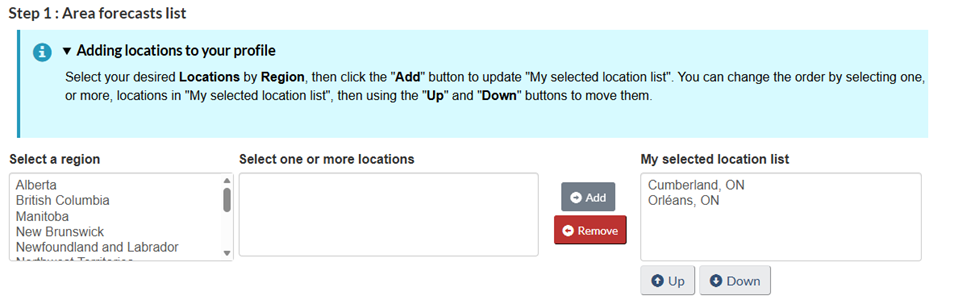
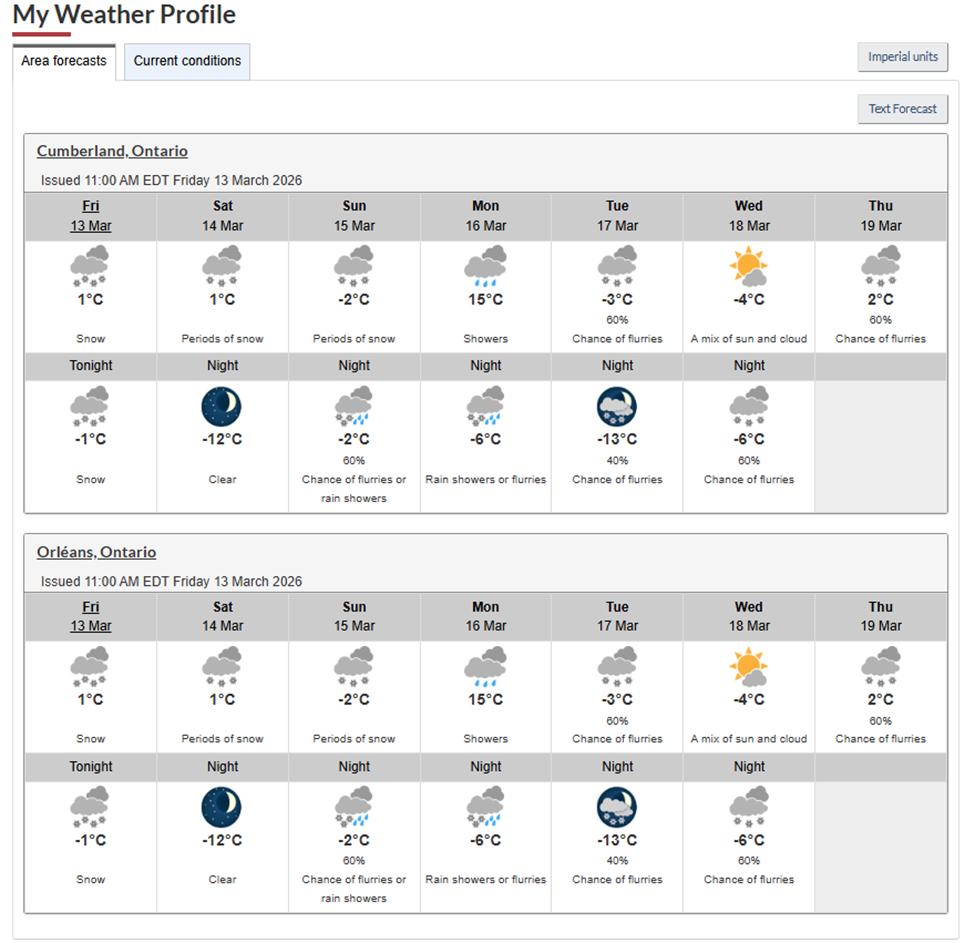
The order of the locations in the 'My selected location list' is the order in which they will appear on the 'Area forecasts' tab of your customized My Weather Profile page.
You can change the ordering of locations by selecting them in the 'My selected location list' and clicking the 'Up' or 'Down' button or change the order of multiple locations by selecting the locations while pressing down on the 'ctrl' key then clicking on the 'Up' or 'Down' button.
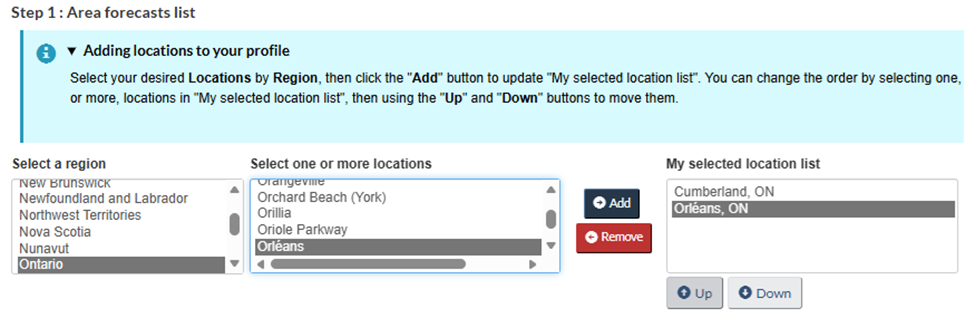
You can also remove locations from your 'Area forecast' tab by selecting the location in the 'My selected location list' and clicking the 'Remove' button.
Current Conditions
The 'Current conditions list' works the same way as the 'Area forecast list', but it displays weather station data on the 'Current conditions' tab of the My Weather Profile page.
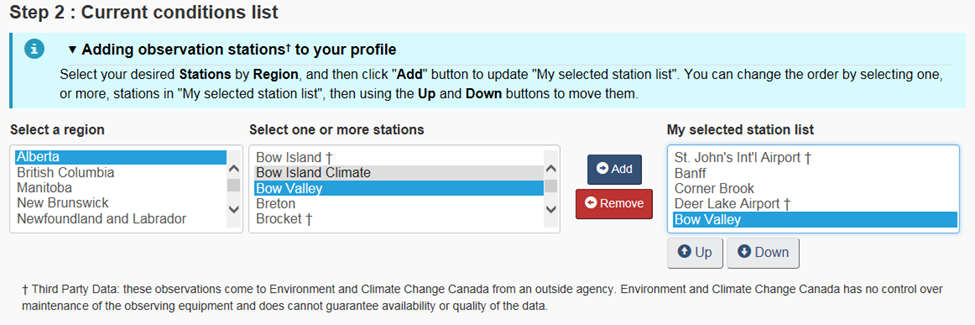
The order of the stations in 'My selected station list' is the same order they will be displayed in the data table on the 'Current conditions' tab. Adding, removing, or changing the order of the observation station is the same process as outlined above for the locations.
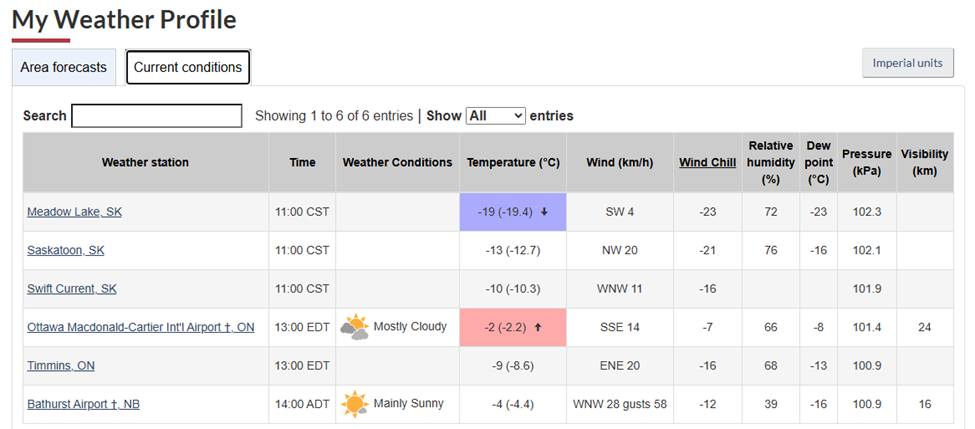
It is important to note that some weather stations identified by a † symbol are under the care and control of agencies outside of Environment and Climate Change Canada. The observations provided by these stations cannot be guaranteed by Environment and Climate Change Canada for availability or accuracy.
Auto-Refresh: Keeping Up-To-Date
The My Weather Profile customization provides an optional auto-refresh feature which will reload the content of the My Weather Profile page and selected pages* every 5 minutes.

In addition to the auto-refresh option, a refresh information button is displayed at the top of the My Weather Profile page as well as select pages*, indicating the time of the next update (when auto-refresh is ON) or when the content was last updated (when auto-refresh is OFF). Clicking on the button will manually refresh the content of the page.
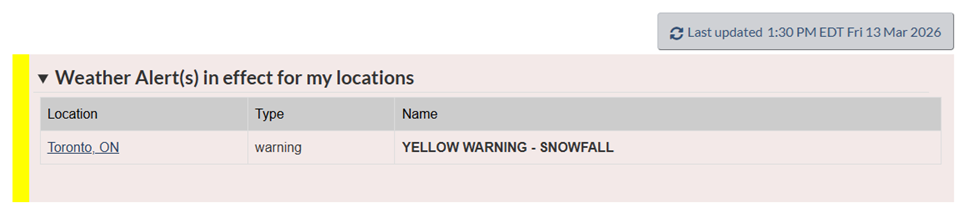
In the interest of public safety, alerts are sorted by colour, alert colour matrix priority and then alert type priority in the alert box, regardless of location or custom sorting. Please note that if the auto-refresh is ON any customized sorting in the table will be lost when the content is updated. This is done to ensure severe weather alerts are clearly visible.
Bookmarking My Weather Profile
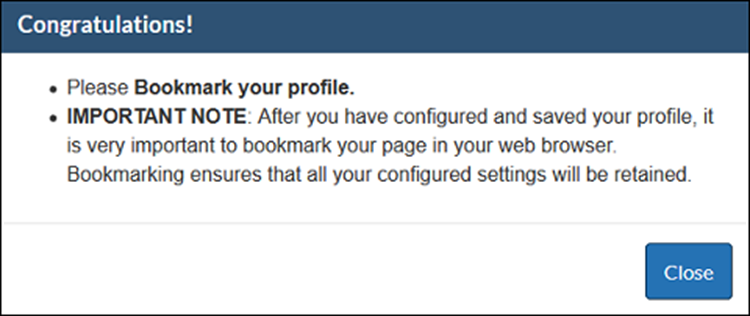
After you have configured and saved your profile, it is very important to bookmark your page in your web browser. Bookmarking ensures that upon your next visit to your My Weather Profile page, all your configured settings will be retained.
Deleting My Weather Profile
In the event you do not wish to use My Weather Profile any longer, you can delete your profile through the 'Edit My Profile' page. By clicking the 'Delete My Weather Profile' button, you will delete your web browser’s local storage associated with the 'My Weather Profile site'. Any bookmarks you have created will remain, however.
*The alert box is displayed on all location, alert, radar, lighting and hurricane pages.
Local storage supports persistent data storage similar to cookies but with enhanced capacity without affecting website performance.
